This guide follows the video step by step. It shows how to sort your available leads, open a lead, hide and restore it, add it to your prospects, open Create Quote and close it without sending, and then check Submitted quotes and Deals won. All the leads shown are demo leads, and some details are blurred.
Step 1: Start from your account home
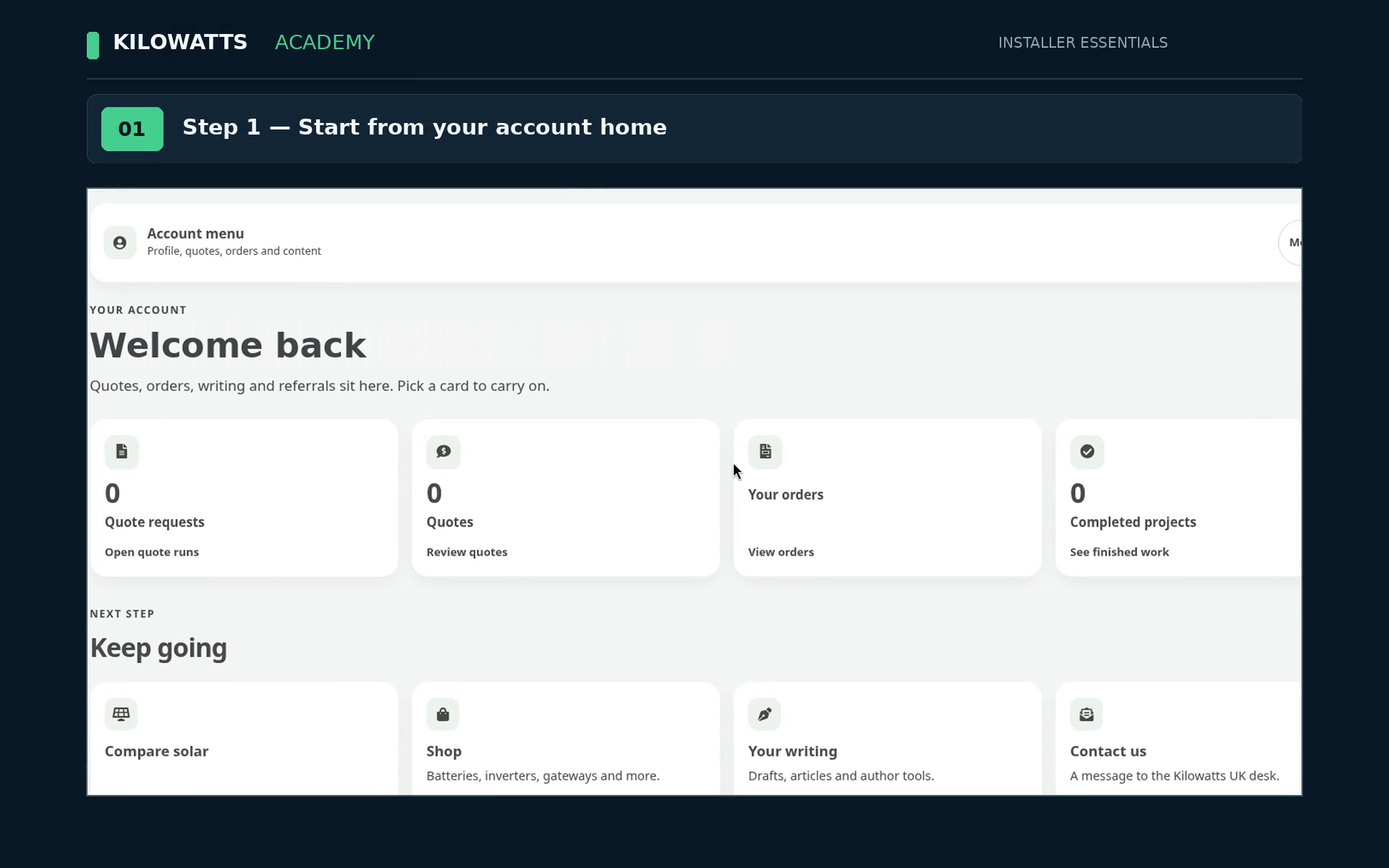
When you sign in you land on your account home. It shows Welcome back and cards for Quote requests, Quotes, Your orders and Completed projects.
Step 2: Choose your business listing
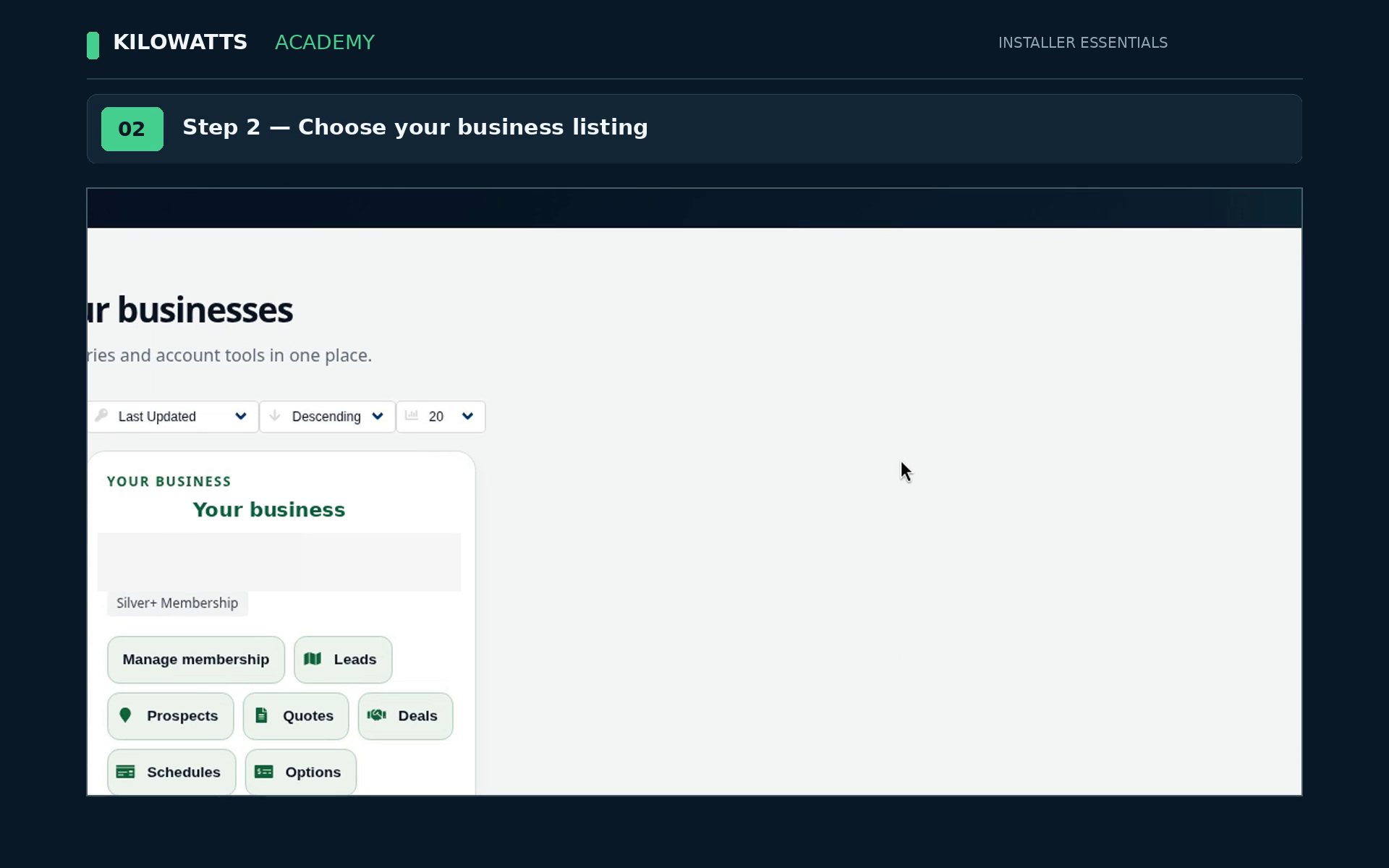
Open Your businesses and find your business card. It shows your membership and buttons for Manage membership, Leads, Prospects, Quotes, Deals, Schedules and Options.
Step 3: Open Leads in your workspace
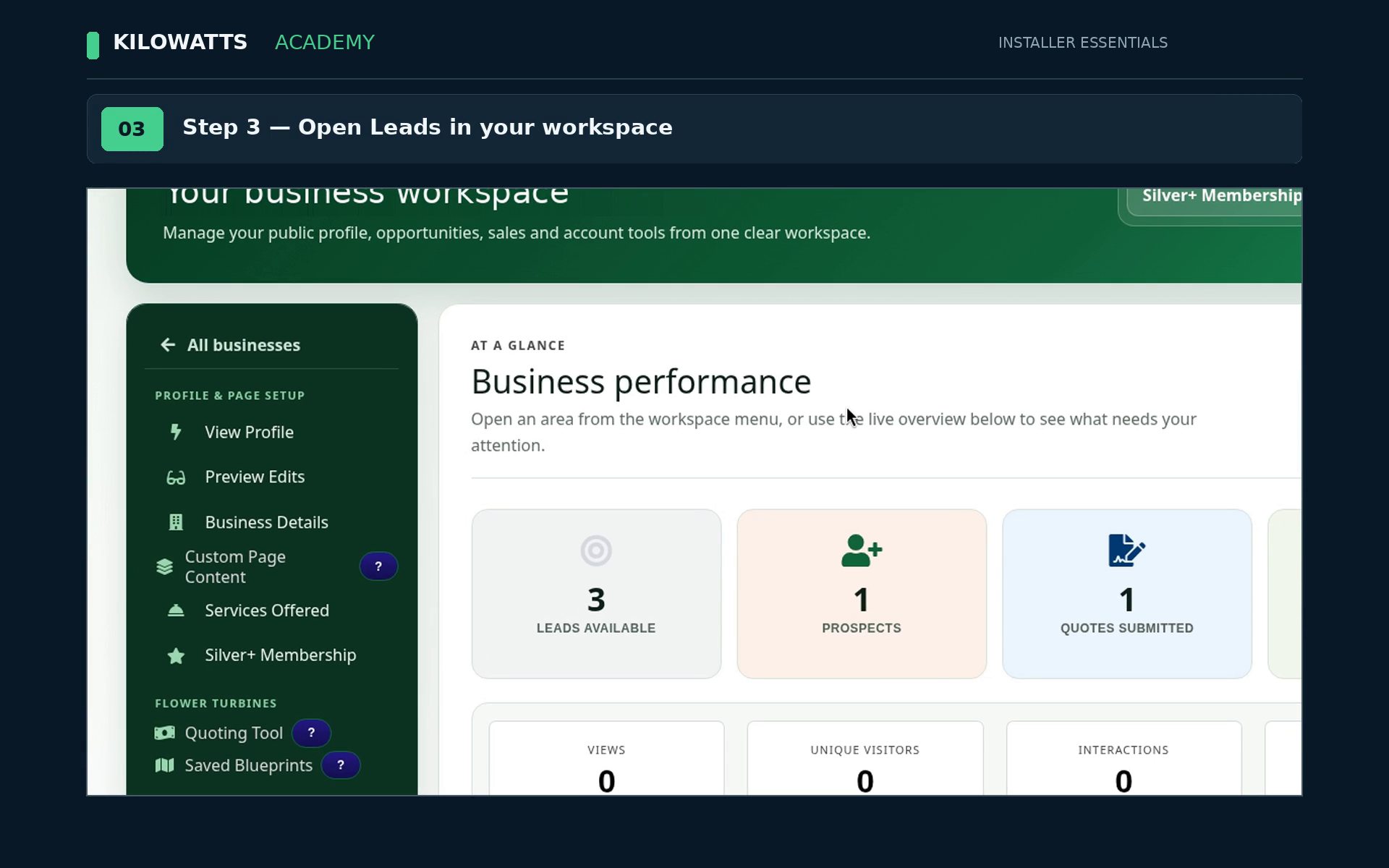
Your business workspace shows Business performance at a glance: leads available, prospects and quotes submitted. The workspace menu sits on the left. Open Leads.
Step 4: Explore available leads
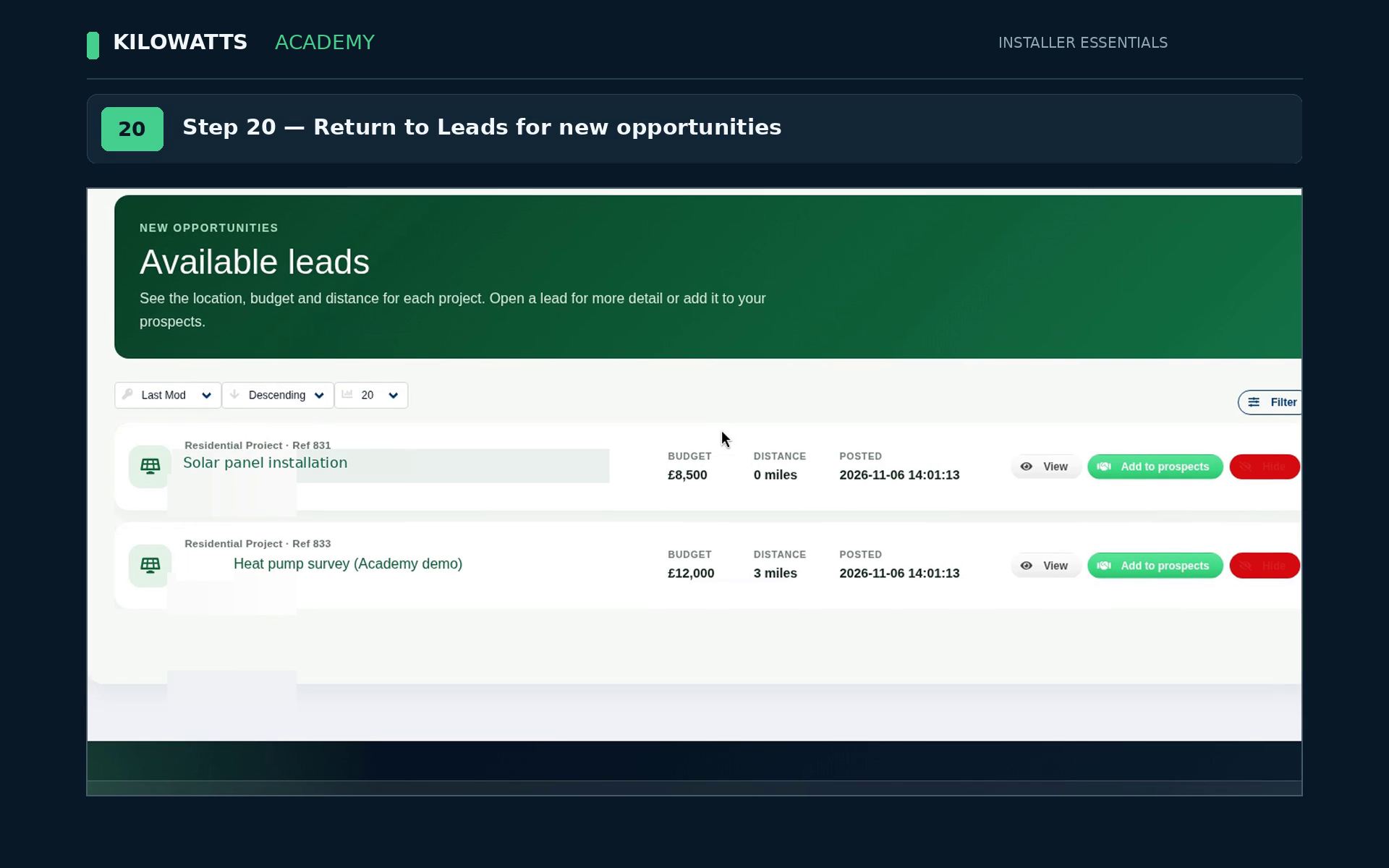
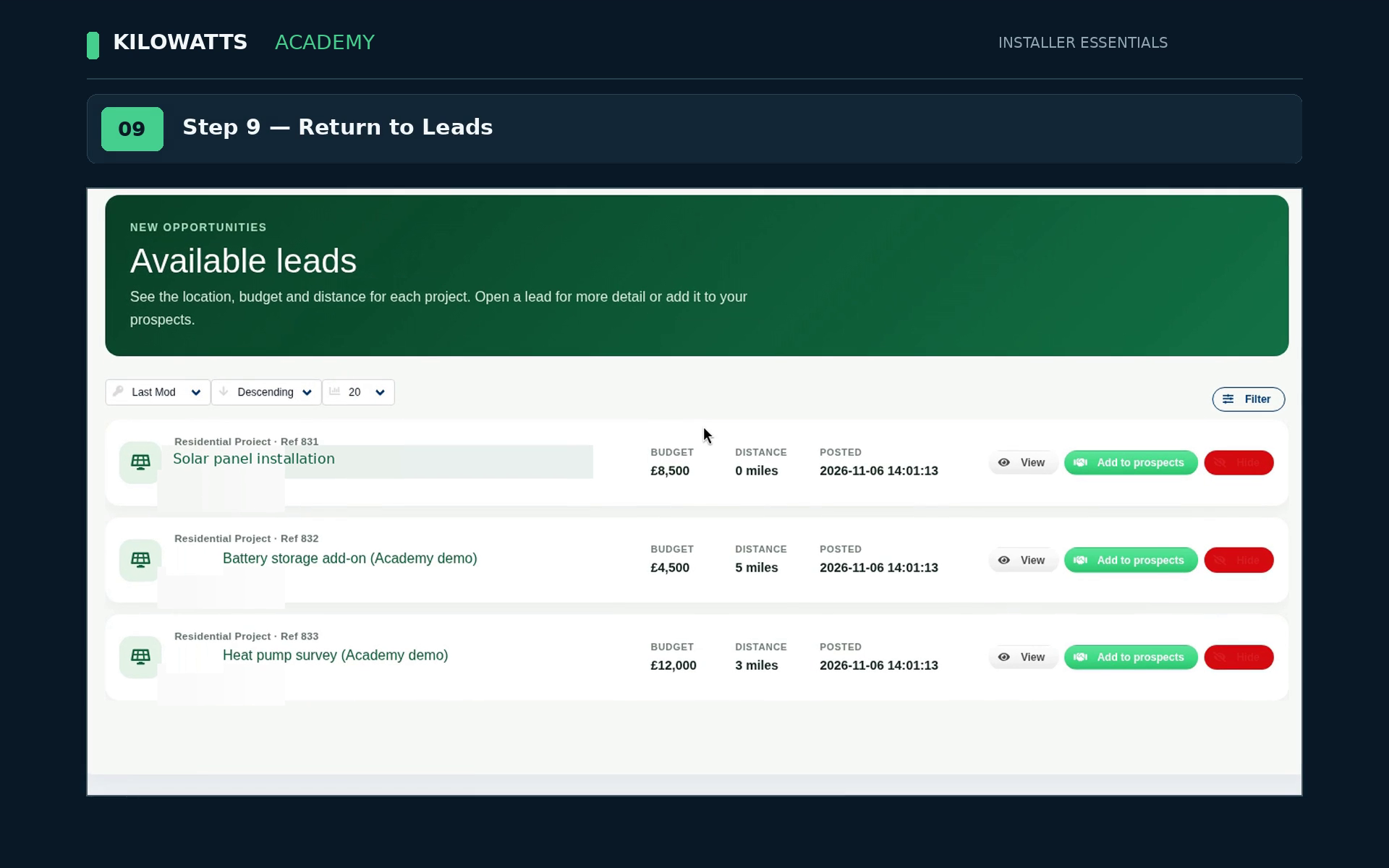
Available leads lists each project with its budget, distance and posted date. Each one has three buttons: View, Add to prospects and Hide.
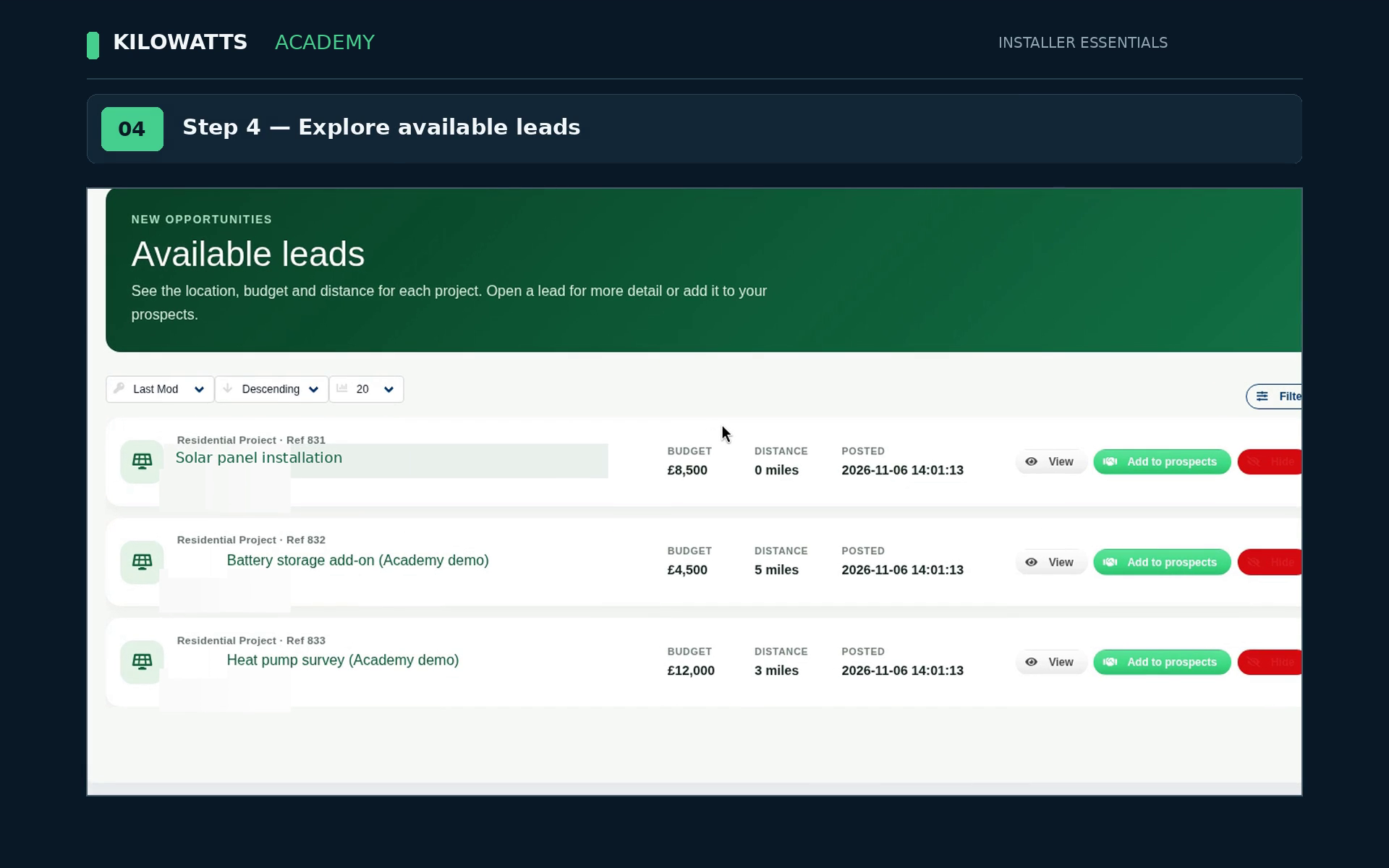
Step 5: Use Order By to choose Distance
Open the Order By menu above the list (it shows Last Mod by default) and choose Distance.
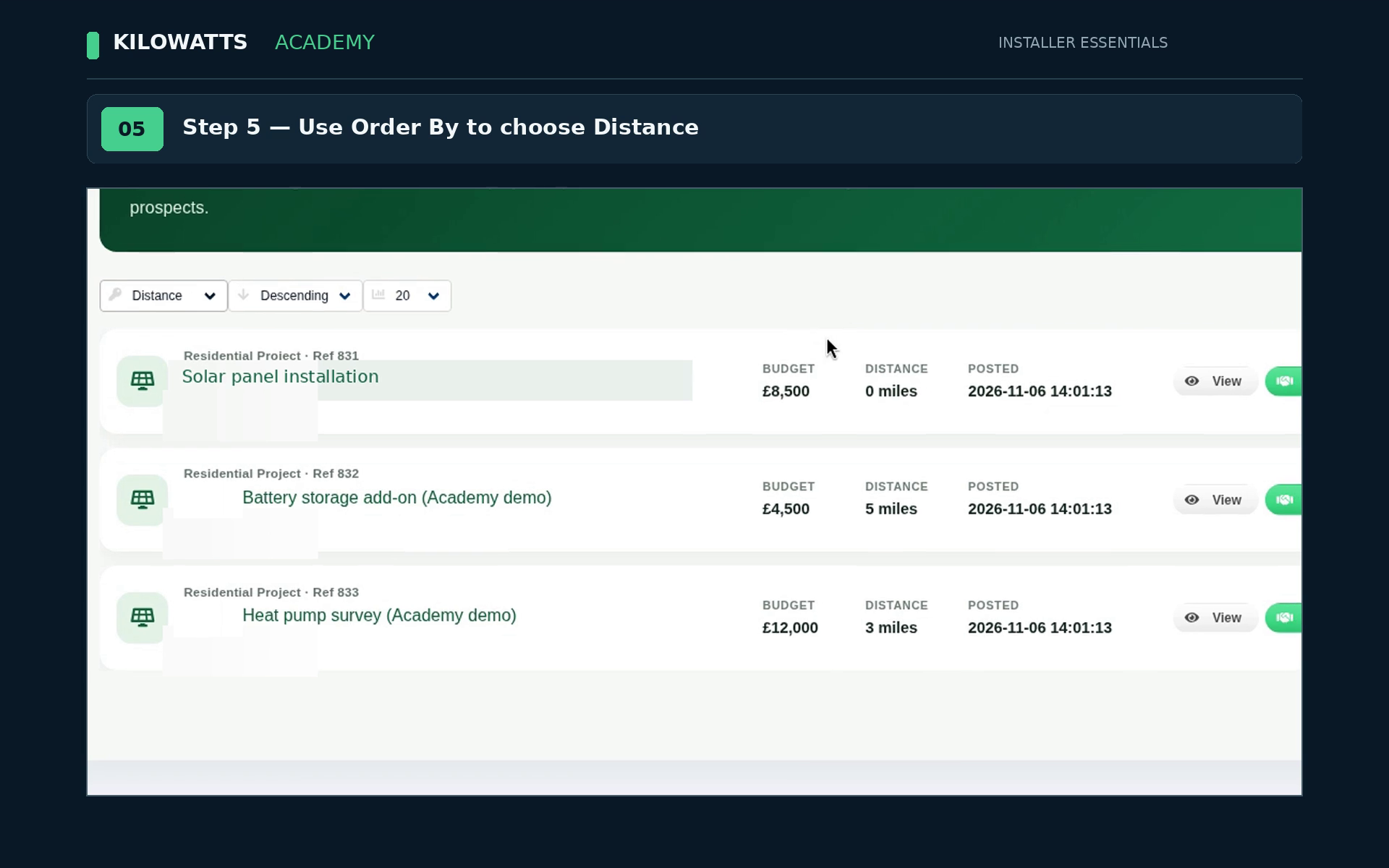
Step 6: Review the reordered results
The list reloads in the new order.
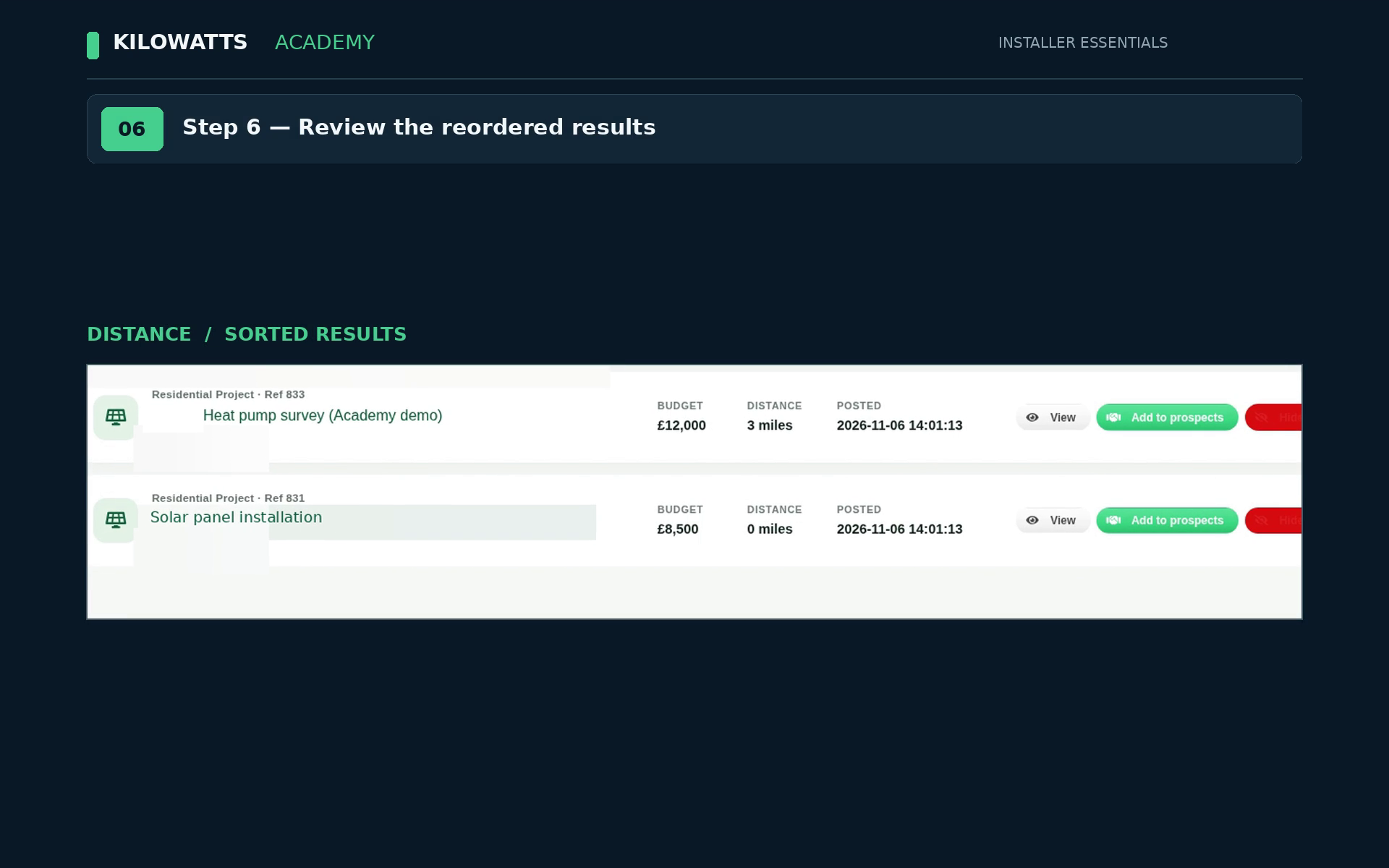
Step 7: Choose View on lead 832
On the lead you want to read, click View.
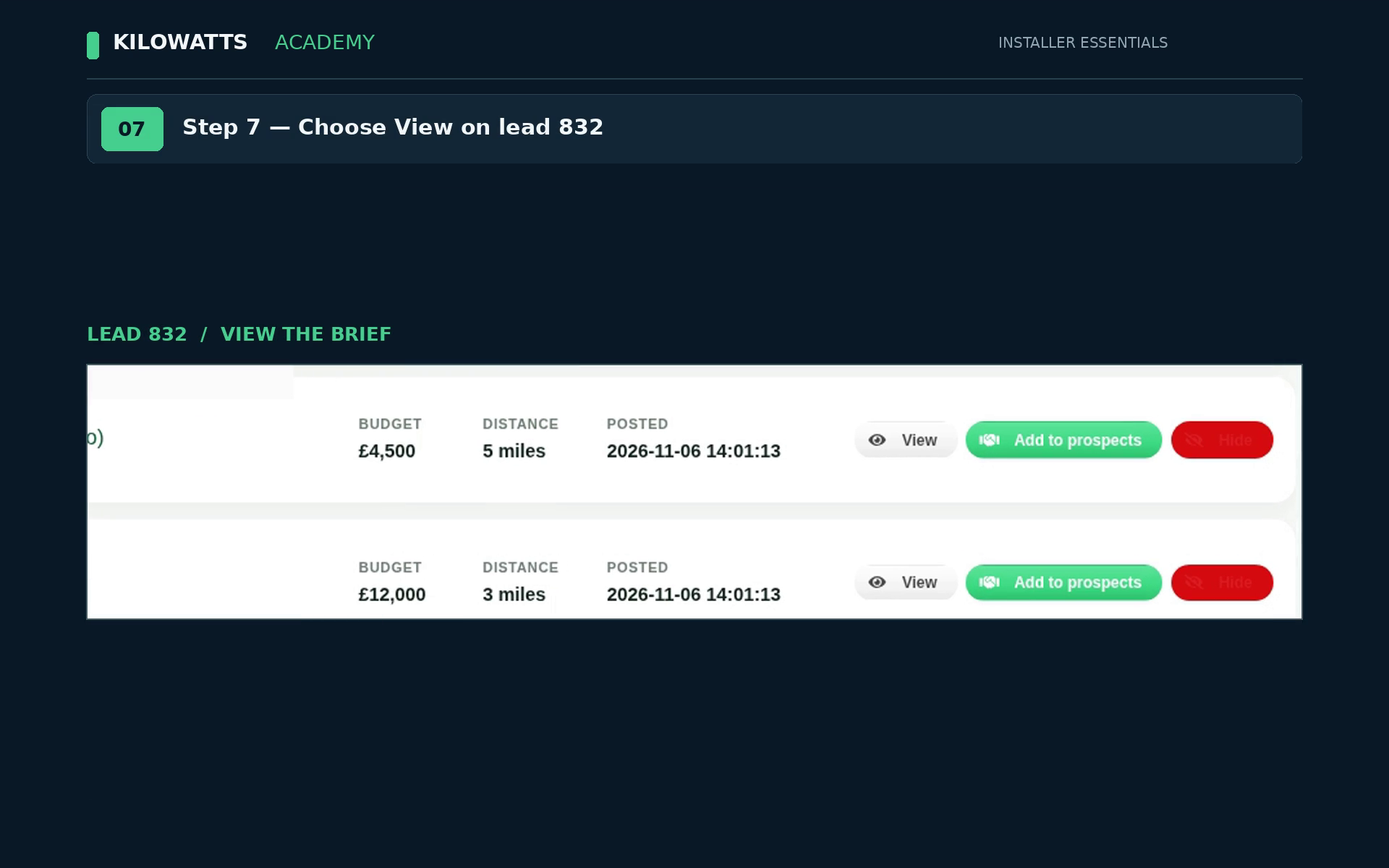
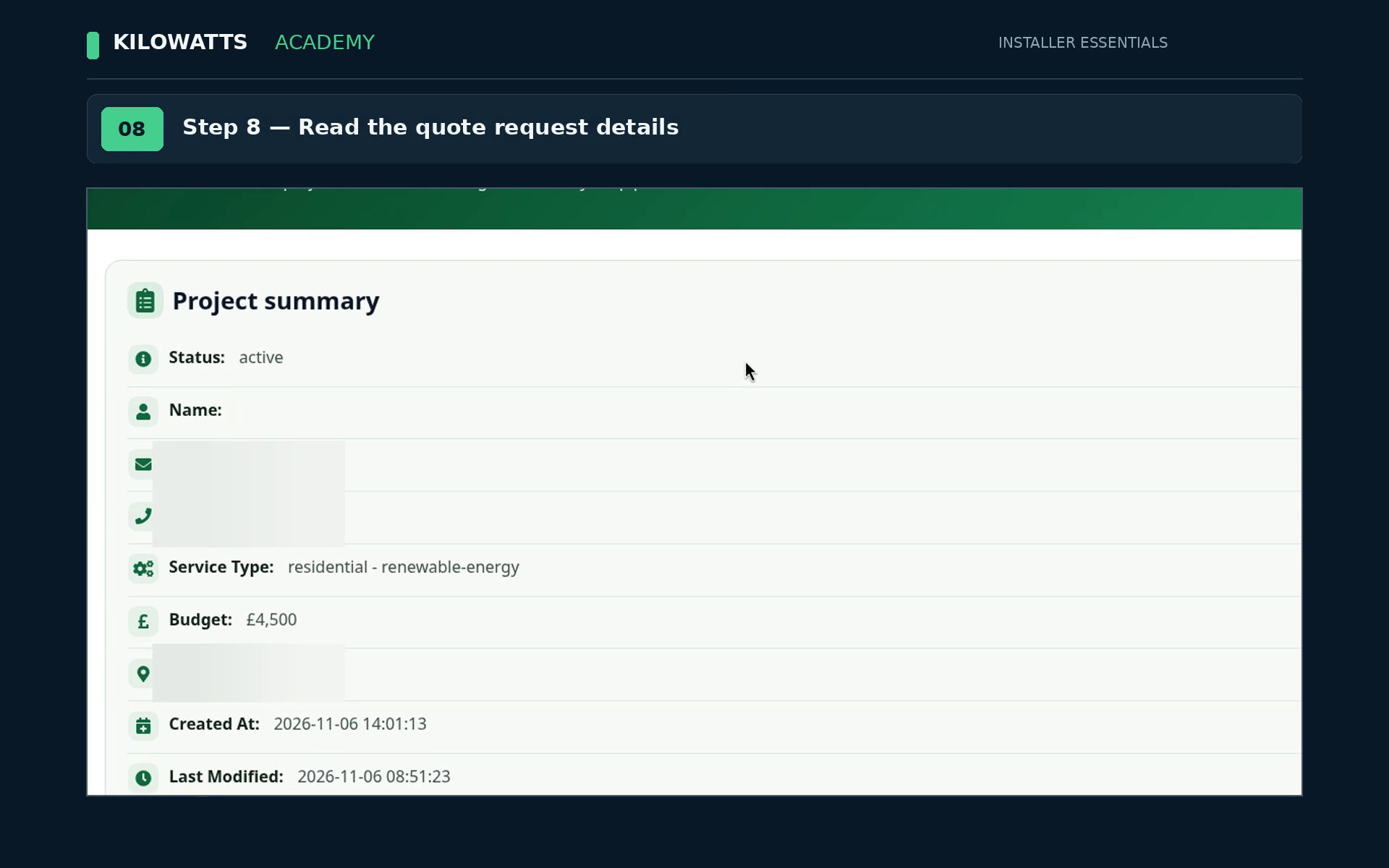
Step 8: Read the quote request details
Project summary shows the lead's status, service type, budget and dates. The customer's contact details are blurred here.
Step 9: Return to Leads
Go back to Available leads.
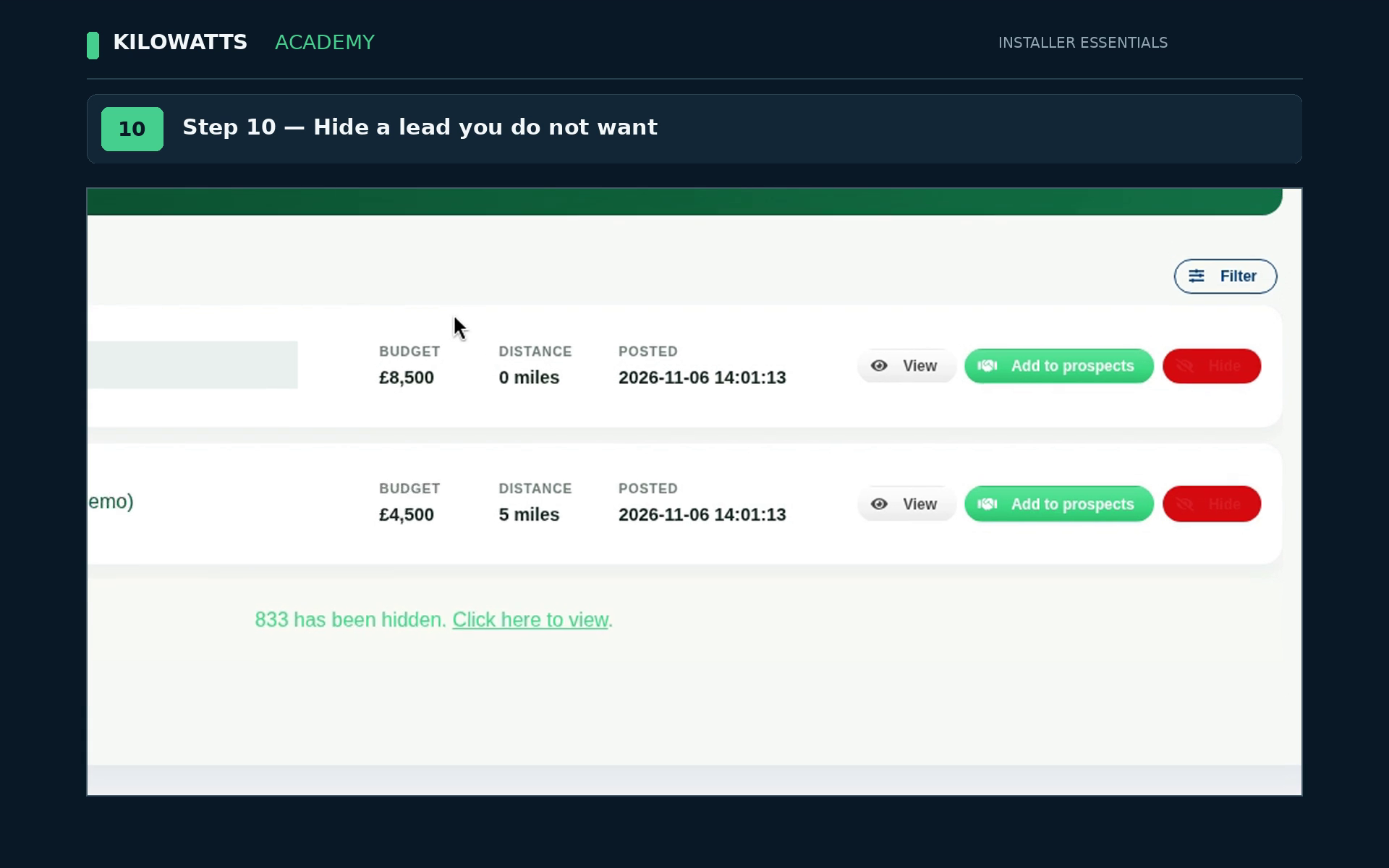
Step 10: Hide a lead you do not want
Click the red Hide button on that lead. The lead leaves the list, and a message confirms it has been hidden, with a Click here to view link.
Step 11: Open Hidden Leads
Hidden leads lists the projects you have taken out of your active list.
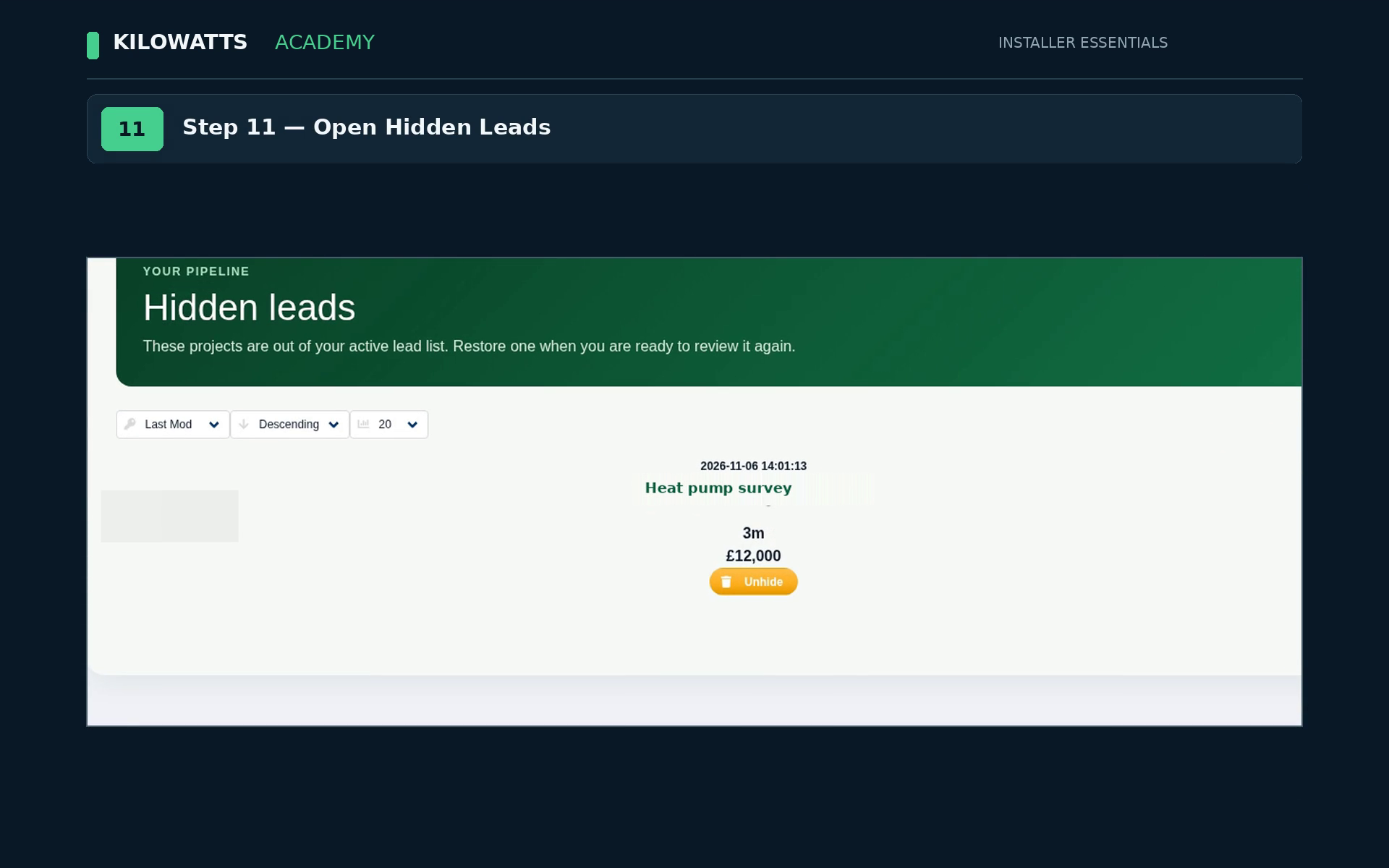
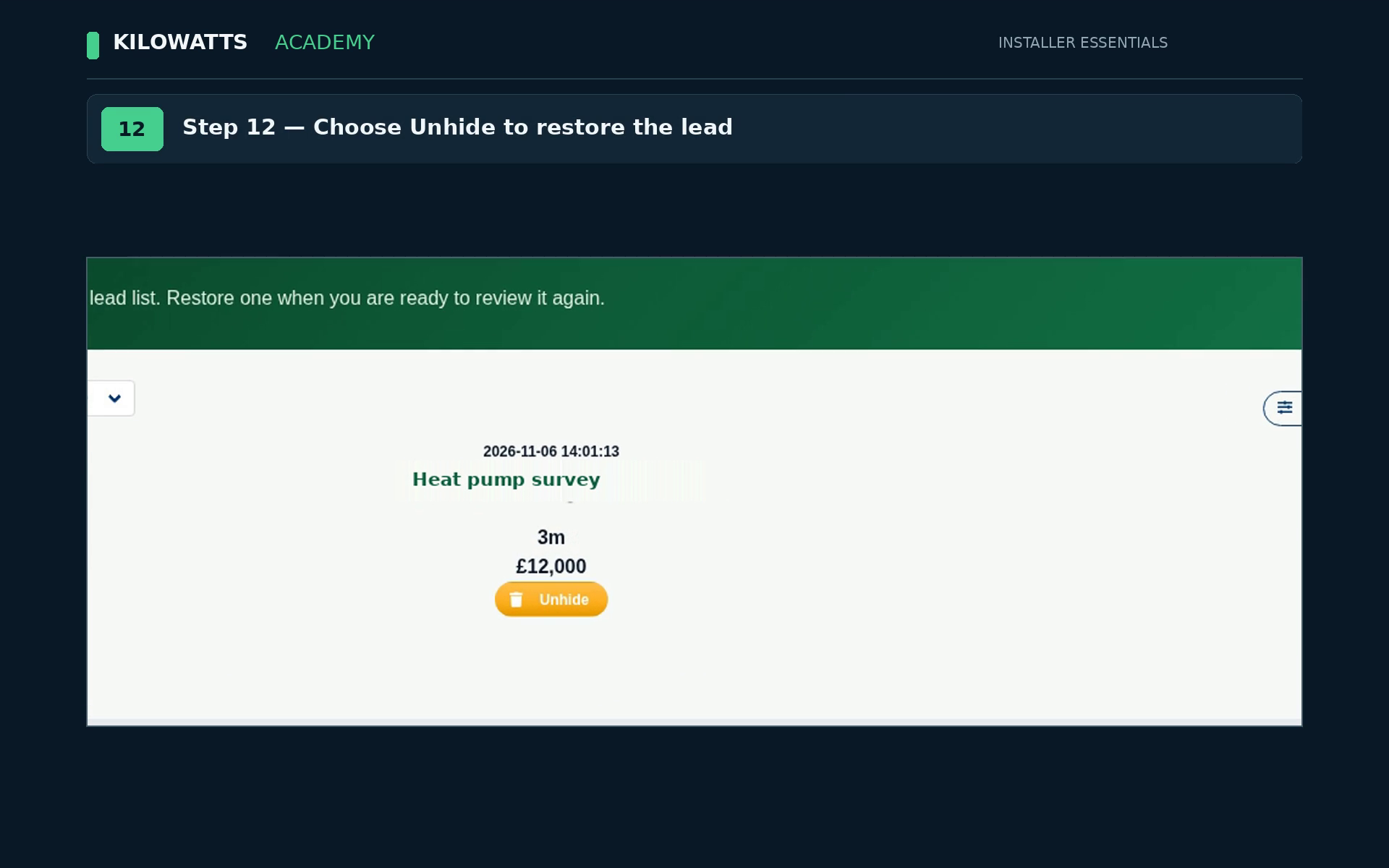
Step 12: Choose Unhide to restore the lead
Click Unhide on the hidden lead to put it back in your available leads.
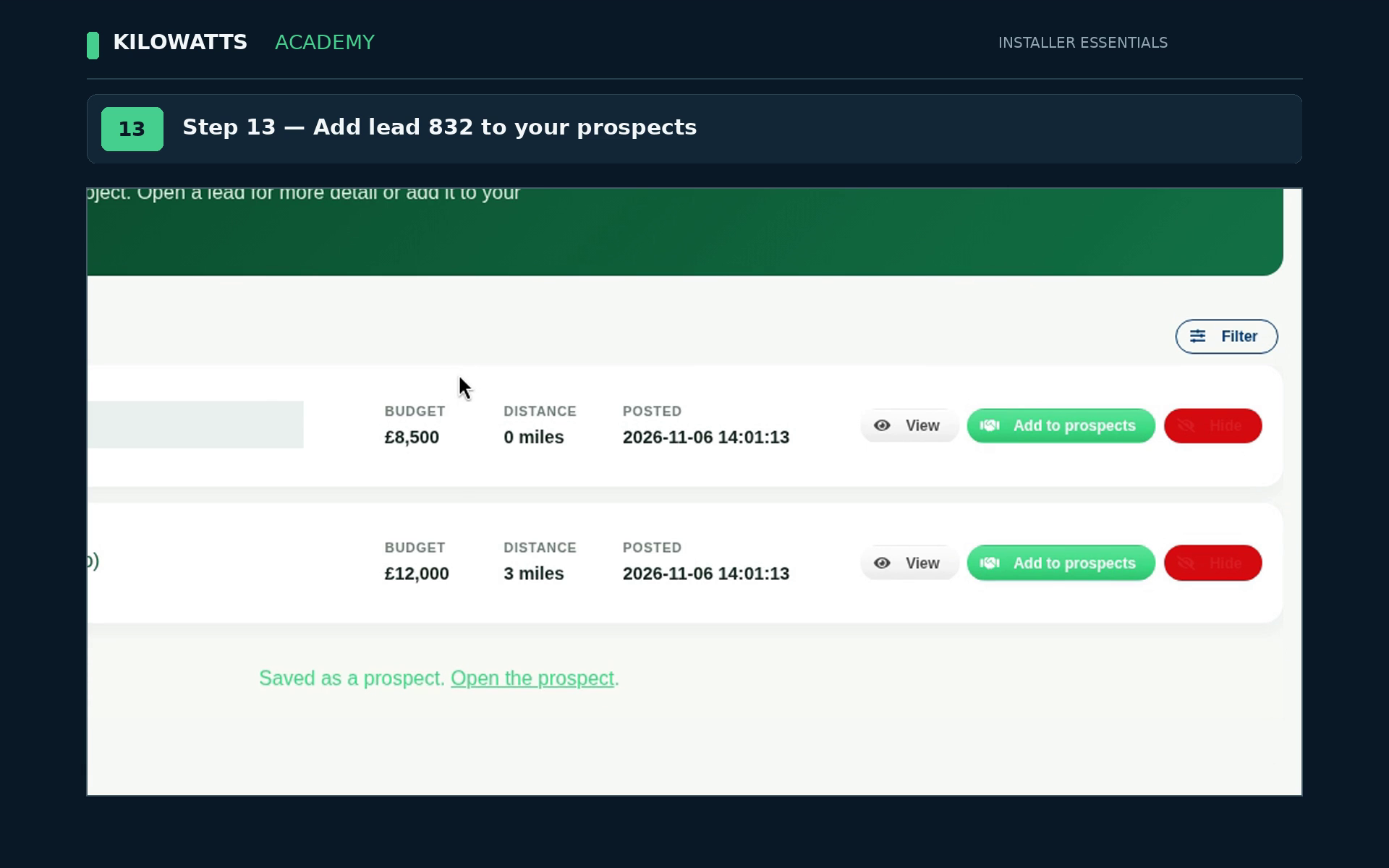
Step 13: Add lead 832 to your prospects
Back in Available leads, click Add to prospects on the lead you want to quote. A message says Saved as a prospect, with an Open the prospect link.
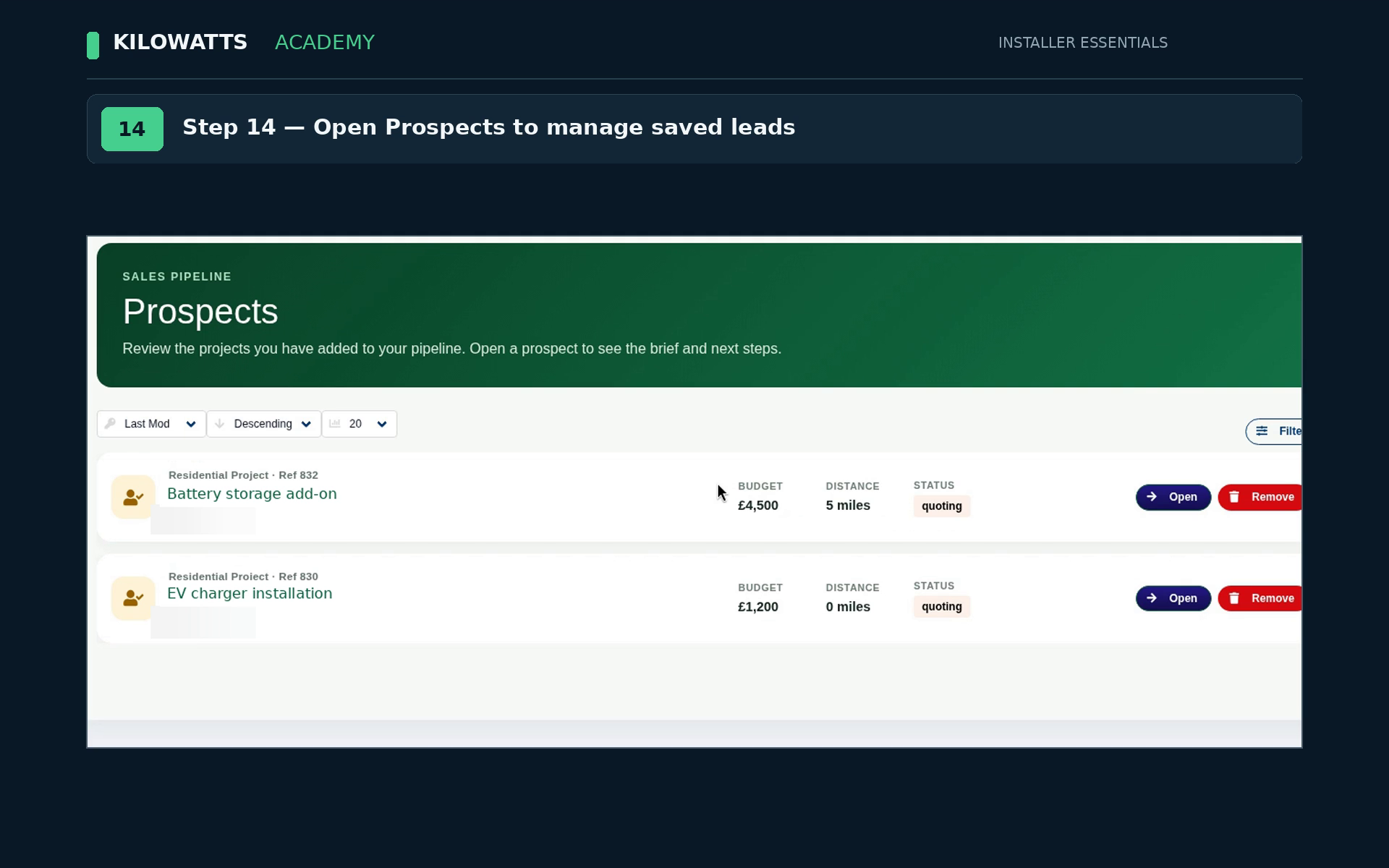
Step 14: Open Prospects to manage saved leads
Prospects lists the projects in your pipeline. Each one shows its budget, distance and status (for example quoting), with Open and Remove buttons.
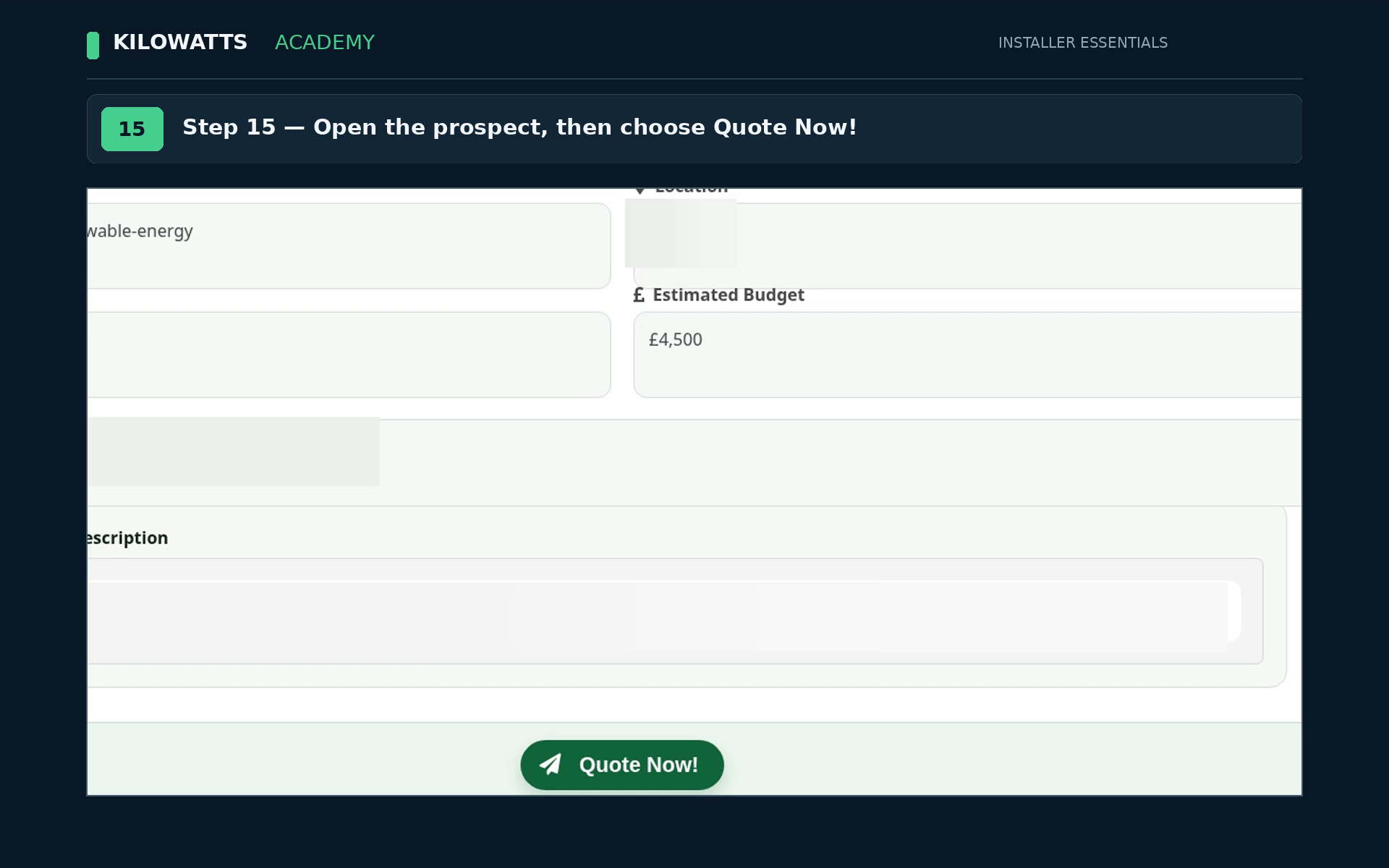
Step 15: Open the prospect, then choose Quote Now!
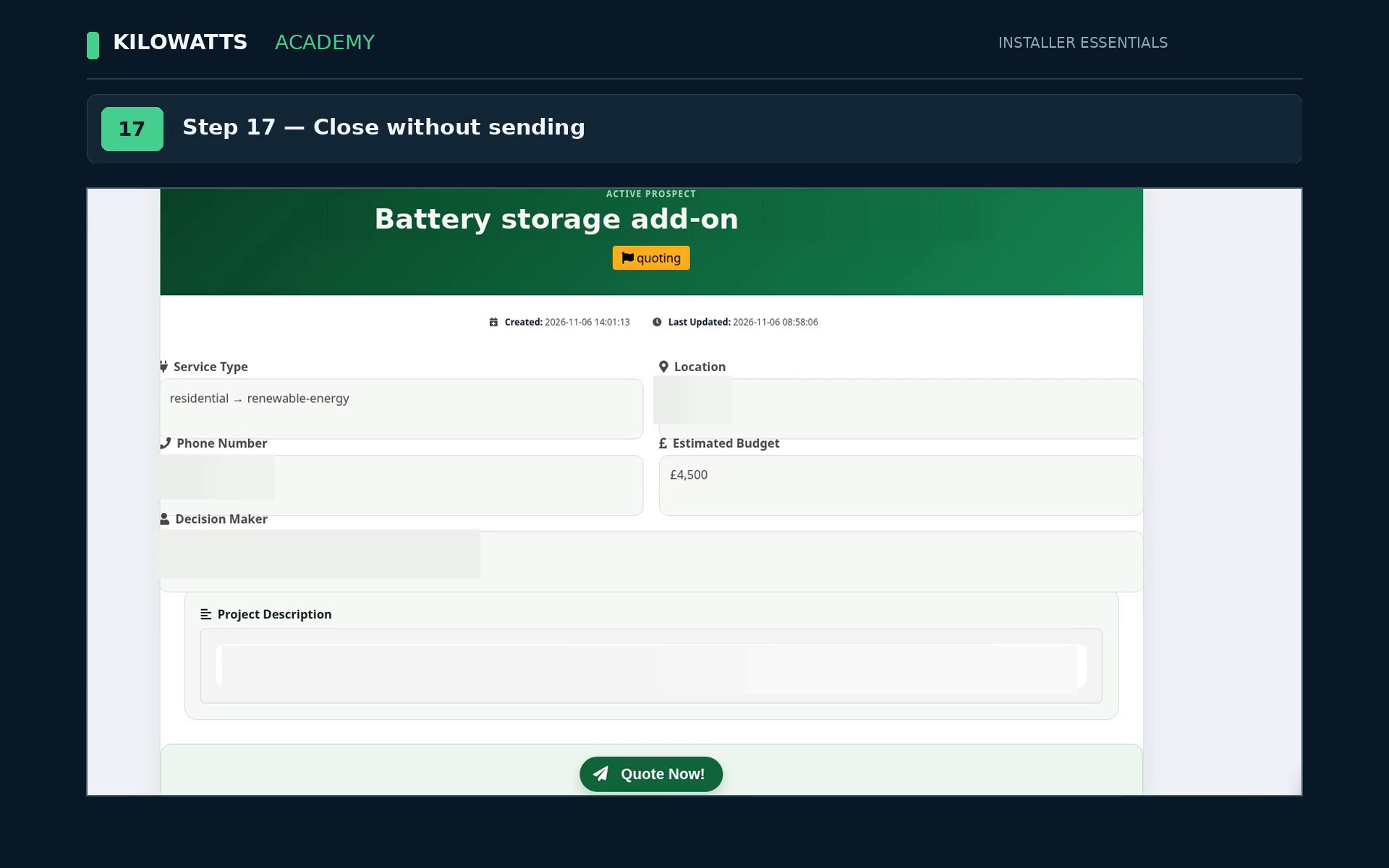
Click Open to read the prospect's details, then click Quote Now! at the bottom of the page.
Step 16: Prepare a quote in Create Quote
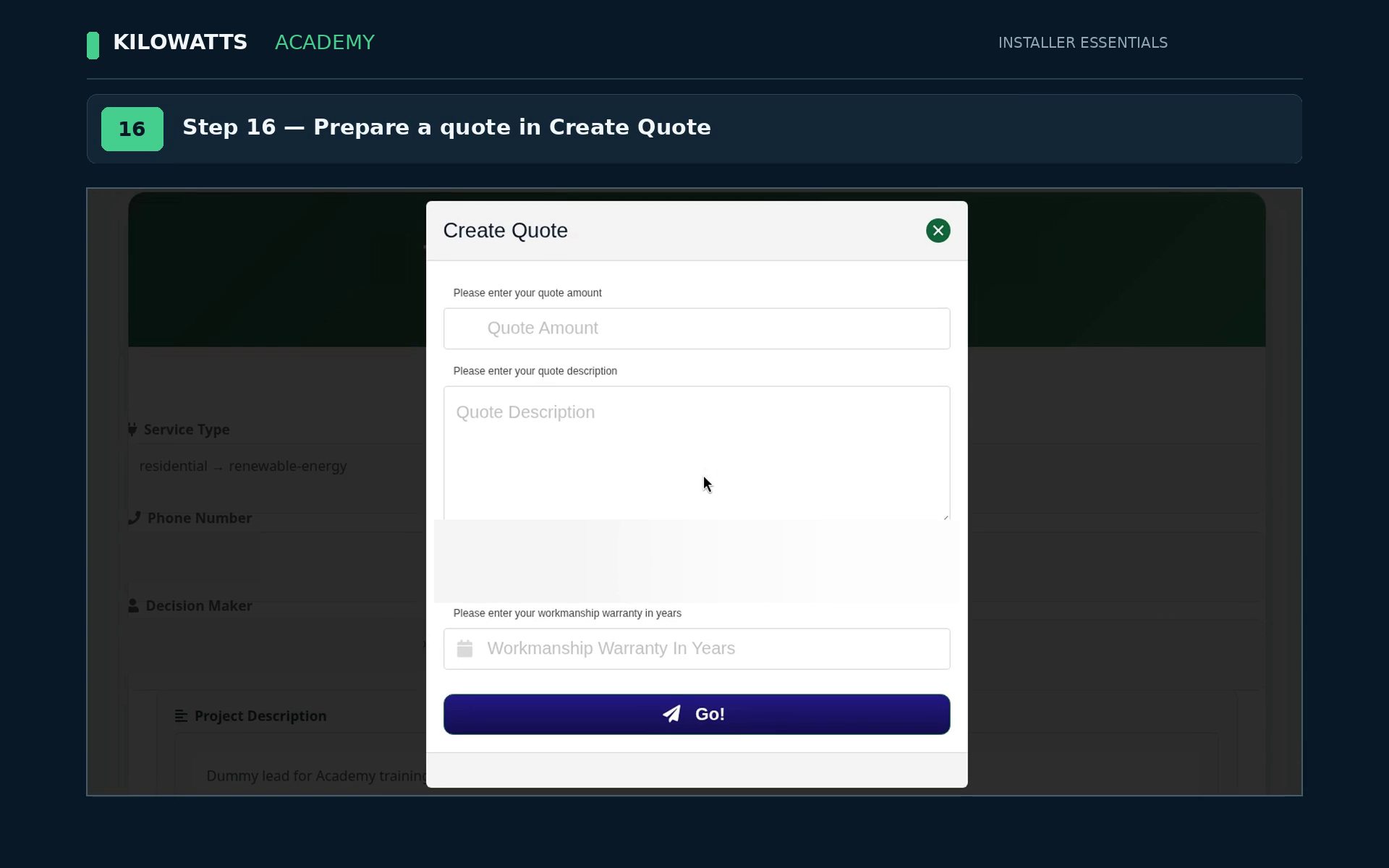
The Create Quote form asks for a quote amount, a quote description, payment options and a workmanship warranty in years. Click Go! to send it.
Step 17: Close without sending
In this walkthrough the form is closed without sending, which returns you to the prospect page.
Step 18: Track sent quotes in Submitted Quotes
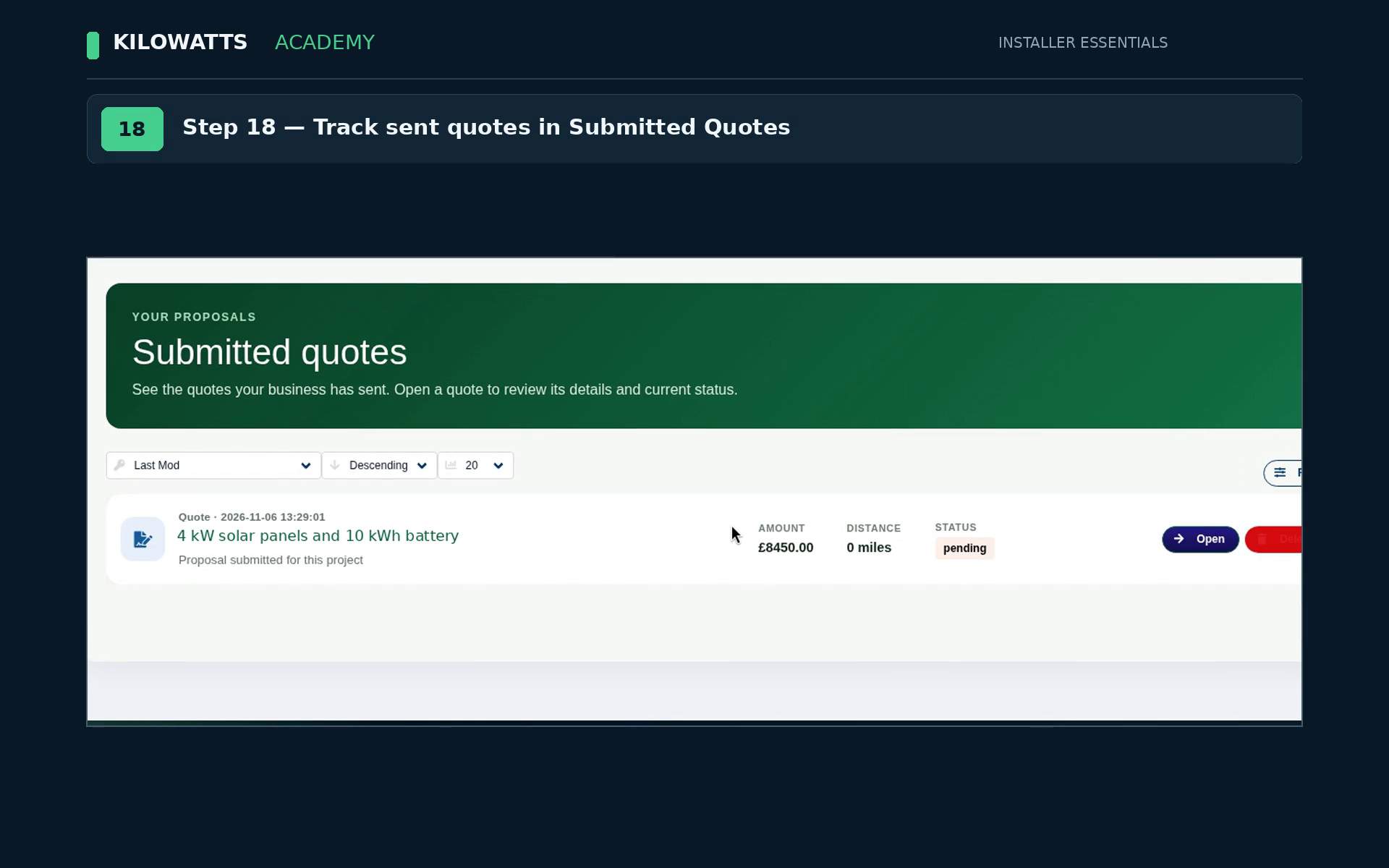
Submitted quotes lists the quotes your business has sent, with the amount, distance and status (for example pending). Click Open on a quote to see its details.
Step 19: See successful projects in Deals Won
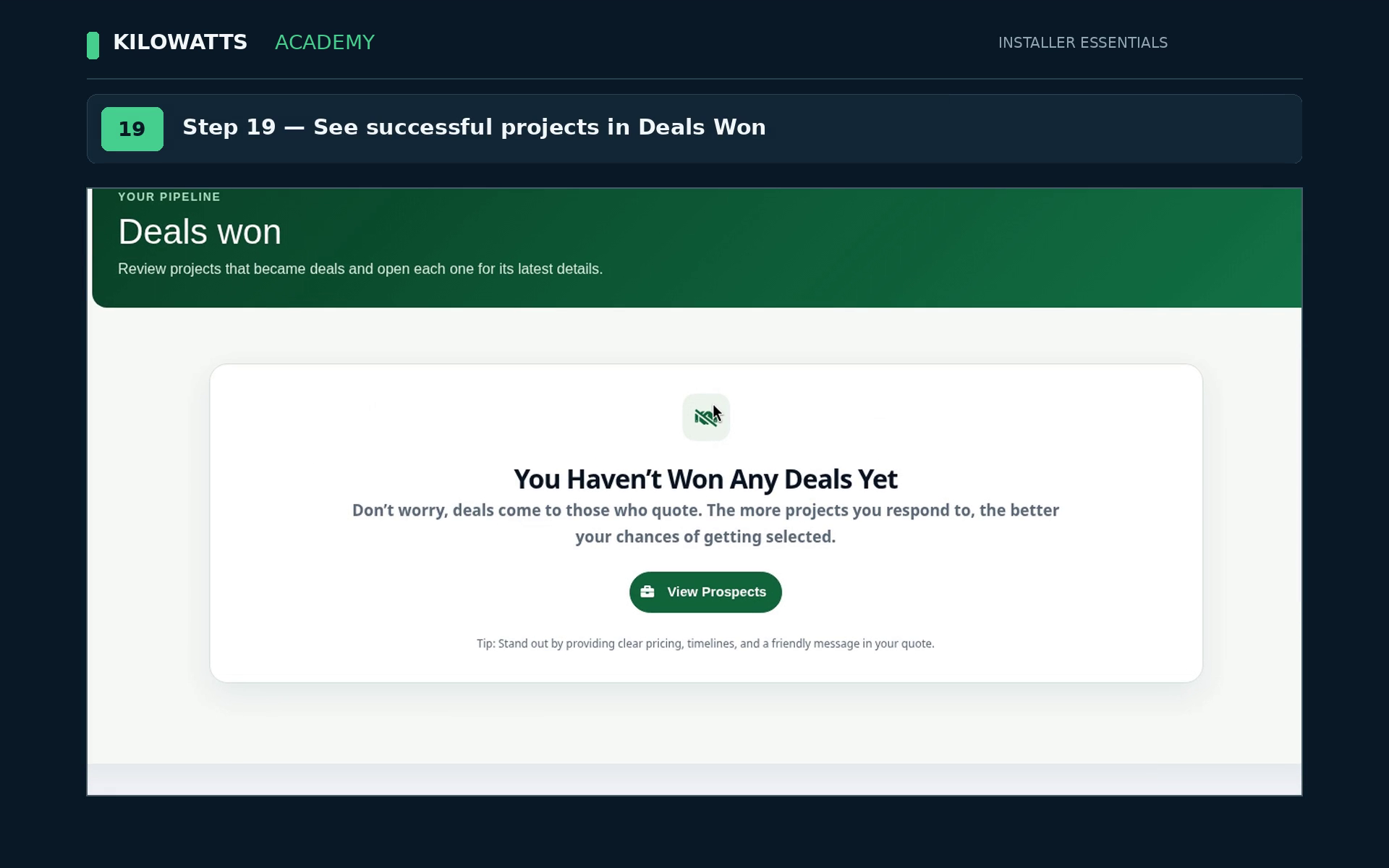
Deals won lists projects that became deals. Until you win one, the page shows You Haven't Won Any Deals Yet and a View Prospects button.
Step 20: Return to Leads for new opportunities
Go back to Available leads to check for new opportunities.