

This guide follows the first part of the video. It shows how to get from your account home to your business workspace and how to read the numbers on the workspace home. All details shown are from a test account, and some are blurred.
Step 1: Start from your account home
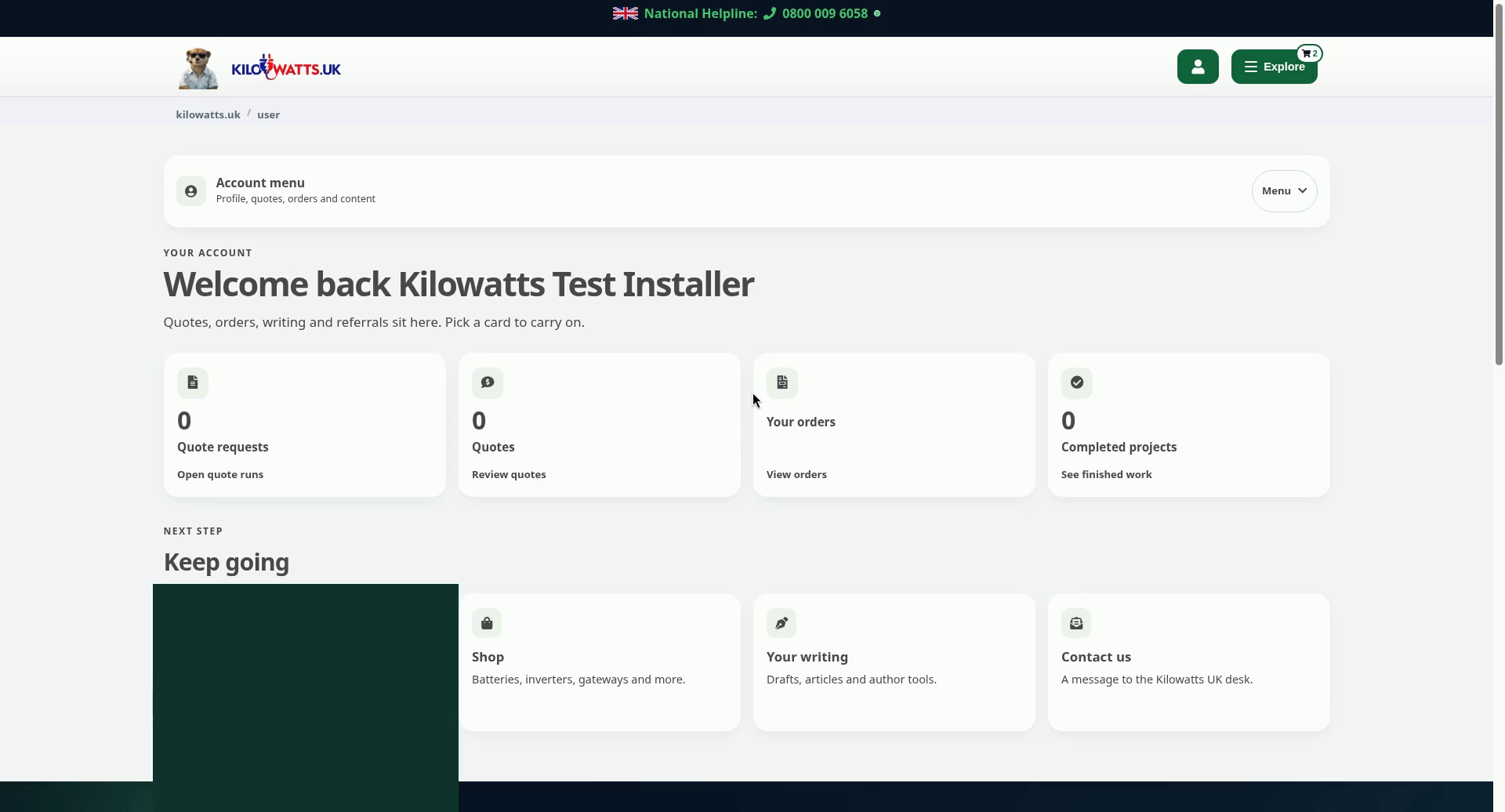
When you sign in you land on your account home. It shows Welcome back and cards for Quote requests, Quotes, Your orders and Completed projects. Below them is a Keep going row.
Step 2: Open Menu, then Your Businesses
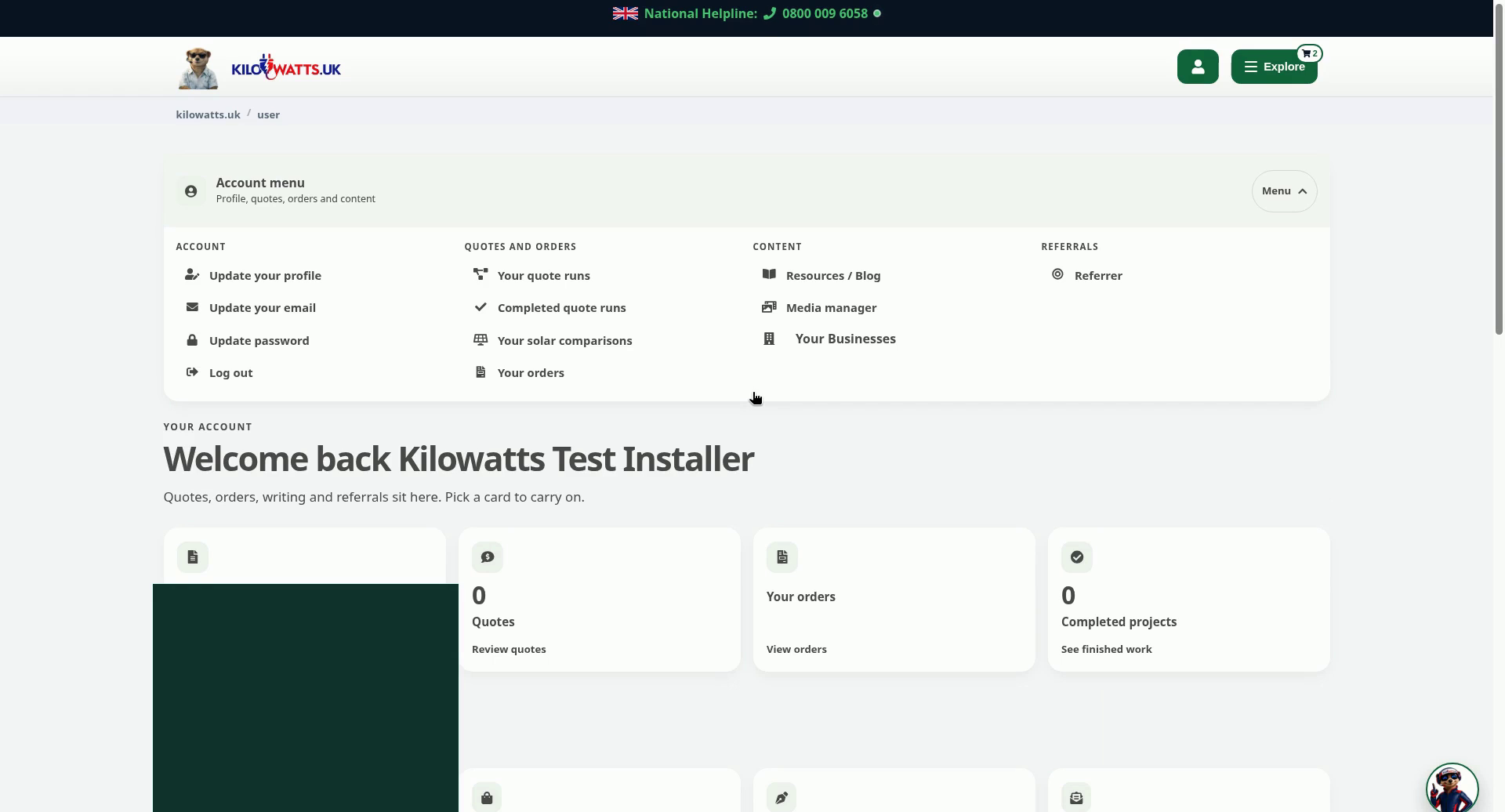
Select Menu on the Account menu bar. Under Content, choose Your Businesses.
Step 3: Find your business card
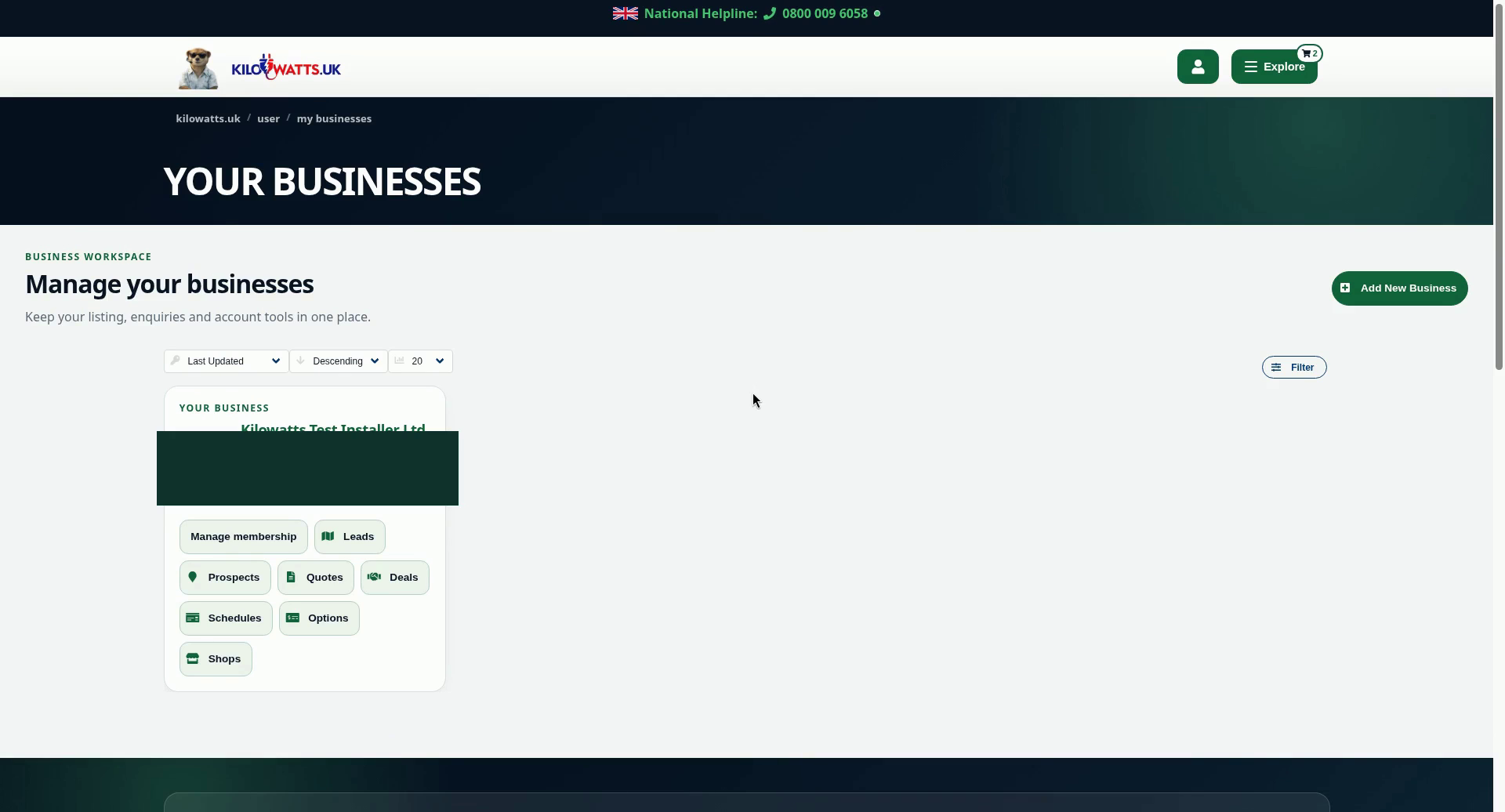
Your businesses shows a card for each business you manage. The card shows your membership level (here Silver+ Membership) and buttons for Manage membership, Leads, Prospects, Quotes, Deals, Schedules, Options and Shops. Use Add New Business to add another business.
Step 4: Your business workspace
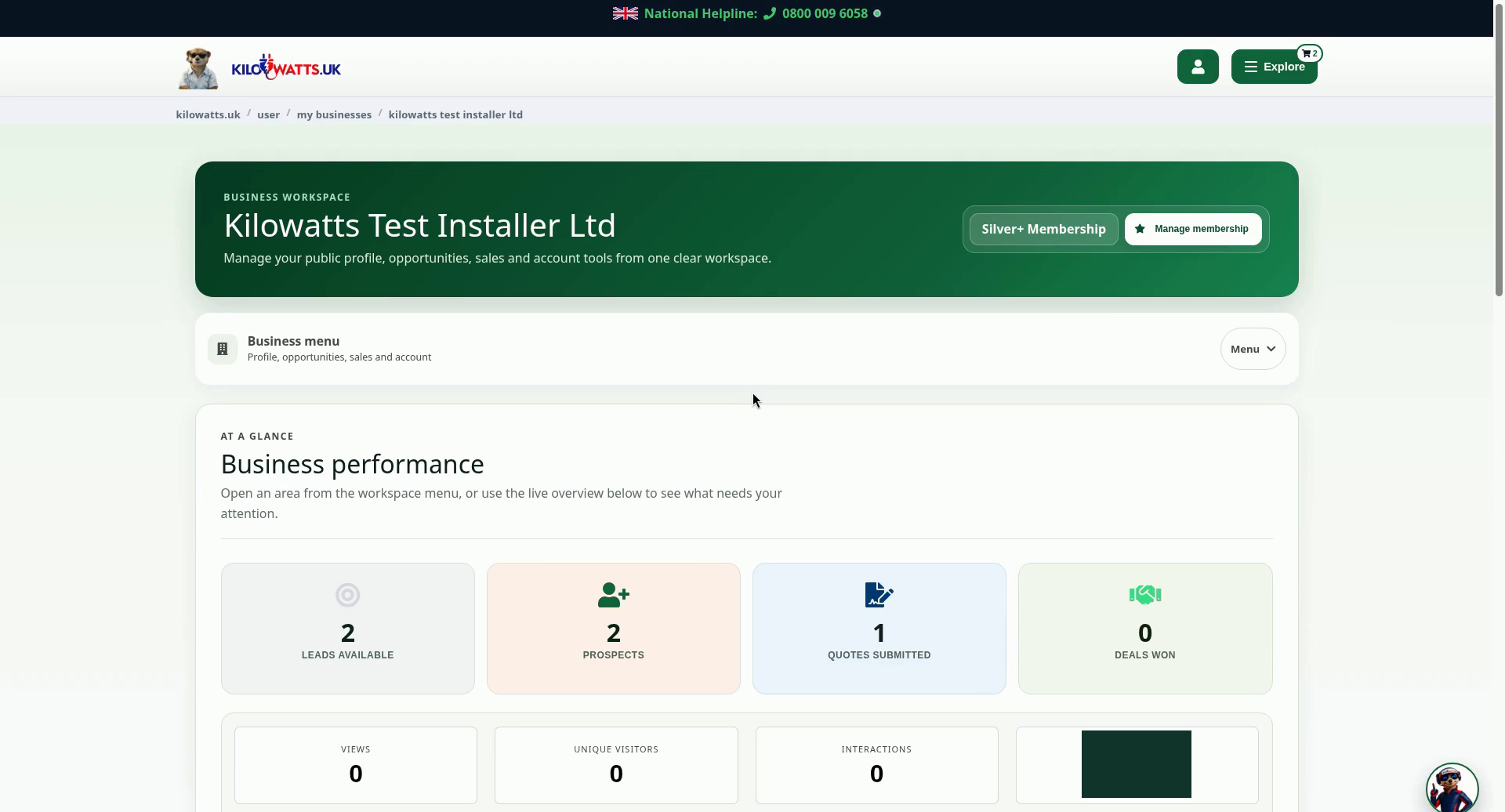
Open your business to reach its business workspace. The header shows your business name and membership level, with a Manage membership button. The Business menu bar sits under it.
Step 5: Check your numbers at a glance
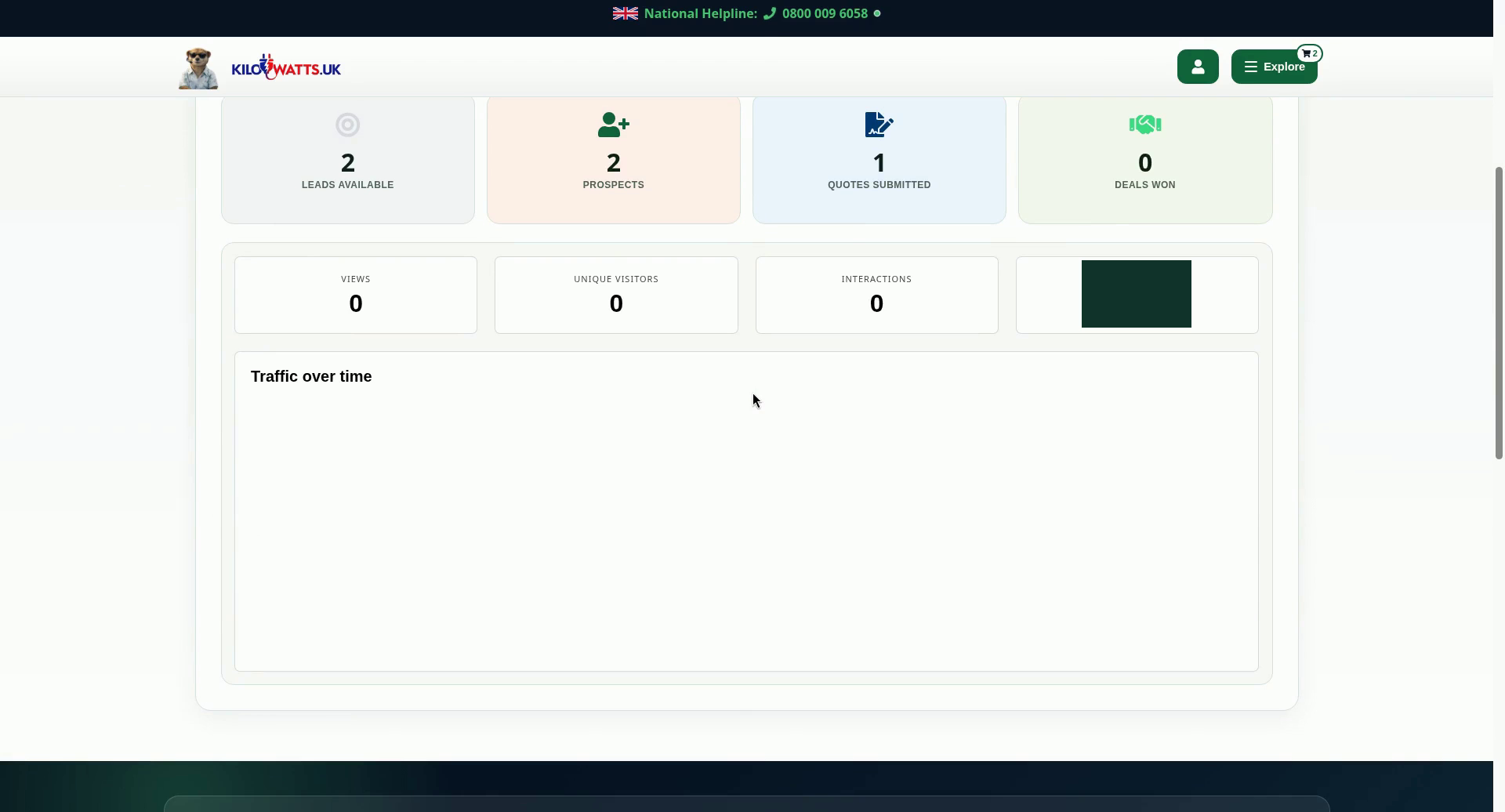
Business performance shows Leads available, Prospects, Quotes submitted and Deals won. Below that are Views, Unique visitors, Interactions and Engagement, and a Traffic over time chart.
Next: Preview your listing · Your membership · Submitted quotes